5 Ways to Color-Code Your Cloud Console by Environment (AWS, GCP, Azure)
April 20, 2026
Production looks exactly like development in every major cloud console. That lack of visual distinction is a root cause of wrong-environment incidents. Color-coding your console headers — red for production, green for dev — is one of the fastest safeguards you can add. Here are five ways to do it, each with different trade-offs.
Why Color-Coding Your Cloud Console Matters
Cloud providers optimize their consoles for feature access, not environment awareness. The account or project name is typically a small label hidden in a corner. Under pressure — during incident response or a late-night deploy — that subtle label is easy to miss.
Color-coding turns environment identification into a zero-effort, glance-and-know signal. Red means stop and think. Green means safe to experiment. It works because humans process color faster than text.
1. AWS Native Console Header Colors
In August 2025, AWS added a built-in feature that lets you tint your console header by account. You can configure it under Settings > Console appearance in the AWS Management Console.
Pros:
- No extension or third-party tool required
- Officially supported by AWS
- Persists across browsers and devices via your AWS account
Cons:
- AWS only — does not work in GCP or Azure
- The color tint is subtle and easy to miss, especially on high-brightness monitors
- Limited color options compared to extensions
- Requires per-account configuration in every AWS account you use
Best for: Teams working exclusively in AWS who want a zero-install solution.
2. Single-Cloud Browser Extensions
Several Chrome extensions provide color-coding for one specific cloud provider:
- AWS Peacock Management Console — Changes header/footer colors based on account ID or alias. Supports SSO and multi-session
- GCP Project Color — Colors the GCP Console header by project name or ID
- Header Color Changer for Azure — Colors the Azure Portal header by tenant
Pros:
- Deep integration with the specific provider’s console
- Often include additional provider-specific features (e.g., favicon changes, SSO support)
- Visible, high-contrast color bars
Cons:
- One extension per cloud provider — multi-cloud teams need 2–3 separate extensions installed
- Separate rule sets to maintain for each extension
- Each extension has its own UI and configuration style
Best for: Teams using a single cloud provider who want strong visual indicators.
3. URL-Pattern Based Extensions
Generic extensions like Environment Marker and Environment Indicator match URL patterns with regex and apply colored labels or borders to any website.
Pros:
- Works on any website, not just cloud consoles
- Highly flexible — supports custom regex patterns
- Can be used for non-cloud environments too (staging servers, admin panels)
Cons:
- Requires manual URL pattern configuration for each environment
- No automatic detection of cloud account or project — you set patterns yourself
- URL-based matching can break when cloud providers change their URL structure
- Setup is more complex for users who are not comfortable with regex
Best for: Teams who also need environment indicators on internal tools beyond cloud consoles.
4. Multi-Cloud Browser Extensions
Cloud Env Marker is a browser extension built specifically for multi-cloud environment color-coding. It automatically detects AWS account IDs, GCP project names, and Azure subscription patterns, then applies color-coded header bars based on your rules.
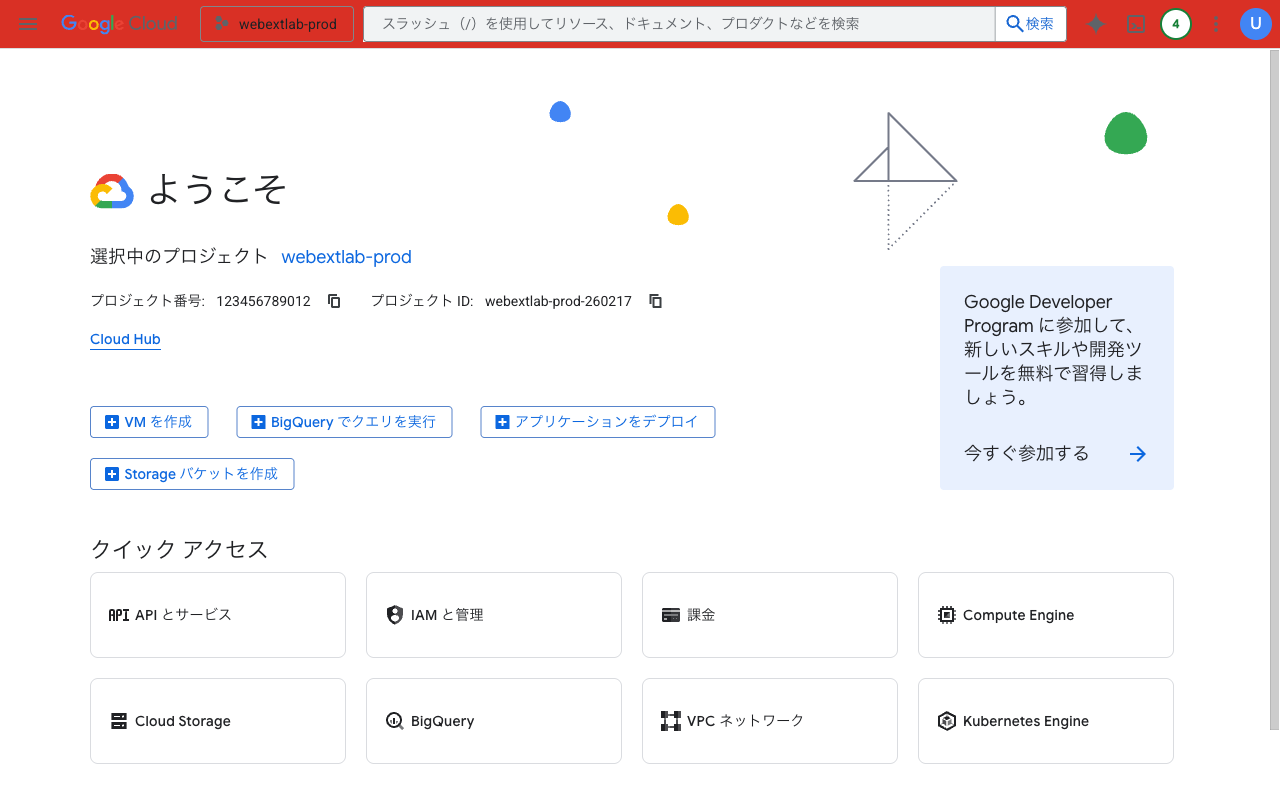
A red header on GCP Console signals production at a glance
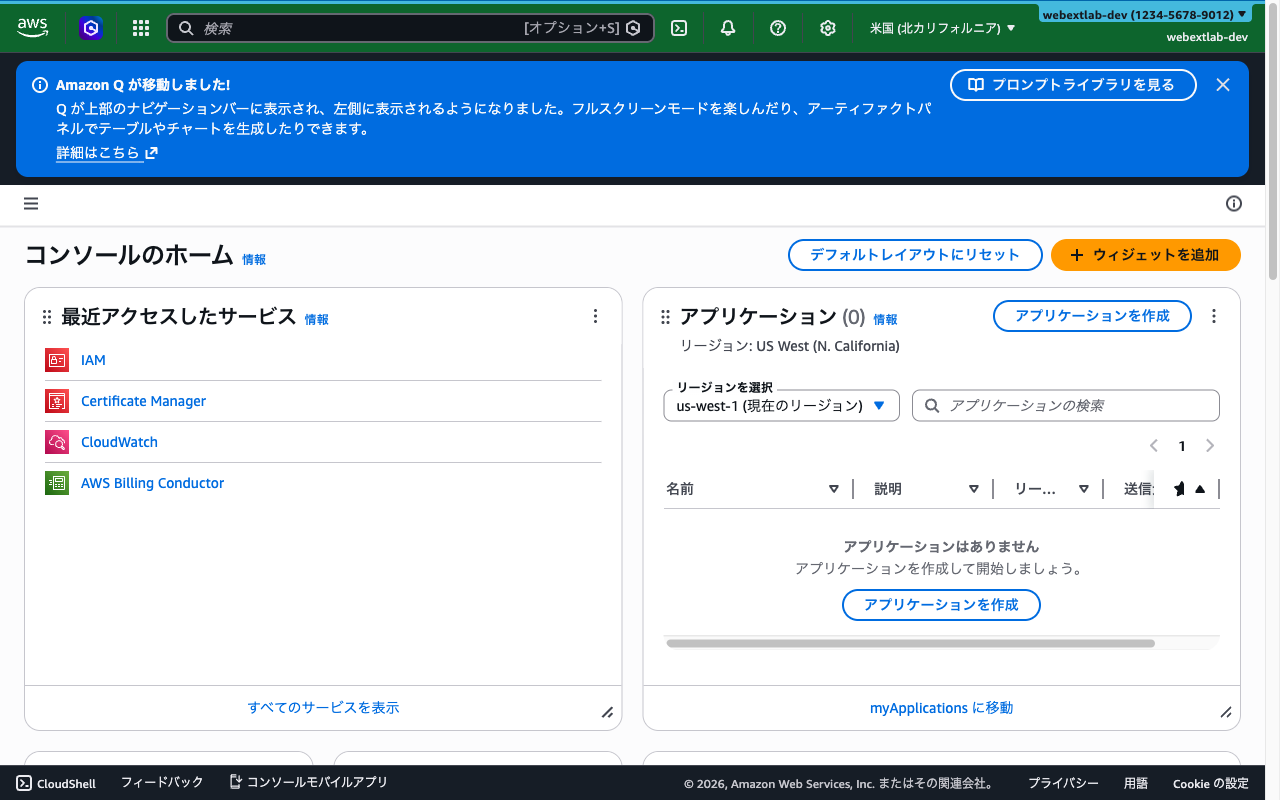
A green header on AWS Console signals a safe development environment
Pros:
- One extension for AWS, GCP, and Azure
- Automatic cloud account/project detection — no regex needed
- Quick Presets for instant prod/staging/dev color setup
- Consistent visual language across all three providers
- Team rule sharing via JSON export/import
Cons:
- Browser extension required (as with options 2 and 3)
- Focused on the three major cloud providers — does not cover arbitrary URLs
Best for: DevOps teams and SREs working across multiple cloud providers who want a unified, low-setup solution.
5. Custom CSS with Stylus or User Scripts
For maximum control, you can write custom CSS rules with the Stylus extension or create Tampermonkey scripts that inject colored elements into cloud console pages.
Pros:
- Complete control over styling — any color, any element, any page
- Free and open-source tooling
- Can be combined with other customizations
Cons:
- Requires CSS or JavaScript knowledge to set up
- Rules break when cloud providers update their console HTML structure
- No automatic account/project detection — everything is manual
- Maintenance burden as cloud consoles change their DOM regularly
Best for: Developers comfortable with CSS who want complete customization beyond color-coding.
Comparison at a Glance
| Approach | AWS | GCP | Azure | Auto-Detect | Setup Effort |
|---|---|---|---|---|---|
| AWS Native Colors | Yes | No | No | Yes | Low |
| Single-Cloud Extensions | Per ext. | Per ext. | Per ext. | Yes | Low per provider |
| URL-Pattern Extensions | Yes | Yes | Yes | No | Medium–High |
| Multi-Cloud Extensions | Yes | Yes | Yes | Yes | Low |
| Custom CSS / User Scripts | Yes | Yes | Yes | No | High |
Which Approach Should You Choose?
The right answer depends on your team’s cloud footprint:
- Single AWS account? The AWS native feature might be all you need.
- One cloud provider, multiple accounts? A single-cloud extension gives you the deepest integration.
- Multi-cloud (AWS + GCP, AWS + Azure, or all three)? A multi-cloud extension avoids the overhead of managing multiple tools with separate configurations.
- Need indicators on internal tools beyond cloud consoles? A URL-pattern extension offers the most flexibility.
- Want complete CSS control? Stylus or Tampermonkey gives you total freedom at the cost of maintenance.
Whichever approach you choose, the key principle is the same: make production visually distinct from every other environment. Red for production is the closest thing to a universal standard. Once it is in place, you will never wonder “is this production?” again.
Multi-cloud color-coding in 30 seconds: Cloud Env Marker colors your AWS, GCP & Azure console headers by environment. Install, tap Quick Presets, and production turns red immediately.
Found this comparison helpful? Leave a review on the Chrome Web Store — it helps other engineers find the tool.
Questions or feedback? Reach out at support@joifup.com.